
Quick answer
A Civil 3D alternative makes sense only for a narrow job: turning points and levels you already have into a compliant long section (plan and profile) and a CAD-ready DXF. Civil 3D remains the right tool for surfaces, corridors, grading and a live pipe network model. A focused profile tool skips the surface, alignment and parts-list setup, and exports a dual-scale DXF you finish in any CAD.
The same drawing has three names depending on who you ask. UK, Irish and Australian engineers call it a long section (longitudinal section). North American utility sets call it the plan and profile. In AutoCAD Civil 3D it is the profile view. It is the same deliverable: one view down the axis of a pipe run showing the ground line, the pipe invert, gradients, depths, stationing (chainage) and the profile table below.
If you are searching for a "Civil 3D alternative", you are almost never looking to replace Civil 3D. You are looking to stop paying its setup cost for a job that does not need a model. This article draws that line honestly: what Civil 3D is genuinely better at, the narrow job where a focused tool wins, and exactly where the focused tool stops.
What Civil 3D is genuinely great at
Be clear about this before anything else, because a comparison that pretends otherwise is useless to you:
- Surface and terrain modelling — building a TIN from survey points, breaklines and contours, and keeping every derived value tied to it.
- Corridor design — roads, assemblies, subassemblies, cross sections generated along an alignment.
- Grading — feature lines, grading groups, volumes between surfaces.
- A pipe network tied to that surface model — parts lists, rules, structures and pipes that re-reference the surface when the surface changes.
- Full BIM workflows — a single model driving many sheets, clash coordination, model-based quantity take-off, and the Autodesk ecosystem around it.
If your deliverable is a live model — something other disciplines coordinate against, something quantities come out of — that overhead is buying you exactly what it costs. Nothing in this article changes that.
The narrow job where it is overkill
Now the other case, which is far more common in utility design than the marketing suggests.
You have a route. You have levels — from survey, from a table, from the client. You need a compliant long section with a profile table, crossings marked at the right chainage, and a DXF on the reviewer's desk today. There is no corridor. There is no surface model anyone will ever ask for. The deliverable is the drawing.
To get a profile view on the sheet in Civil 3D you still typically need to:
- Build or import a surface for existing ground,
- Create an alignment along the pipe run,
- Sample a surface profile along that alignment,
- Build a pipe network (or pressure network) with the right parts list,
- Create the profile view and draw the network into it,
- Configure band sets, styles and label styles so invert levels, depths, gradients and stationing appear the way your reviewer expects.
Every one of those steps is powerful and, for a 12-manhole gravity sewer or a water service connection, heavy. Most of the time goes into setup and styling, not into design decisions.
A fair comparison
| AutoCAD Civil 3D | Altivo | |
|---|---|---|
| Setup before the first profile | Surface, alignment, surface profile, parts list, profile view, band and label styles | Paste a coordinate table; the profile is drawn as you enter levels |
| Learning curve | Deep — the payoff is a modelling environment, and it takes real training | Shallow — a spreadsheet-like table plus two canvases (plan and profile) |
| Licence model | Named-user subscription; see Autodesk's own pricing page for current terms | Subscription per user, 14-day trial, no card required; runs in the browser on any OS |
| Inputs accepted | Survey databases, point files, LandXML, surfaces, alignments | X,Y or X,Y,Z pasted from Excel or a CAD coordinate table (separator auto-detected); DXF/PDF/PNG base map as an underlay to trace over |
| Outputs | DWG sheets, plan-and-profile sheet sets, LandXML, IFC, model-based quantities | Dual-scale DXF (profile + optional plan view in one file, named layers, editable MText), IFC 2x3/IFC4 reference model, XLSX |
| Crossings / obstacles | Modelled as network parts or referenced objects | First-class objects anchored to a segment at a chainage, with the clearance drawn and labelled |
| Profile table rows | Band sets and label styles, configured once and reused | Switch rows on and off per project; every value derives from the same data set |
| Collaboration | Data shortcuts, Autodesk Docs, a shared model | Organisation workspace, shared projects, browser access; no file check-out |
| Surface modelling | Yes | No |
| Corridor / road design | Yes | No |
| Hydraulic network calculation | Via the Autodesk ecosystem | No — per-section calculations only |
Where Altivo is not a replacement
Worth repeating outside the table, because the table is easy to skim:
- No surface or terrain modelling. Altivo samples ground levels you give it; it does not build a TIN and cannot generate them from a point cloud.
- No hydraulic network calculation. There are per-section helpers (gradients, invert levels, cover, linear pressure loss on rising mains), but no full steady-state or dynamic network simulation and no pump selection.
- No corridor, assembly or grading design. Roads, cross sections and earthworks volumes are out of scope.
- Not a model-based BIM authoring tool. The IFC export is a georeferenced reference model for coordination — useful in a federated model, not a substitute for authoring in a BIM environment.
If any of those four is your actual requirement, stop here and stay with Civil 3D. Everything below assumes they are not.
From an Excel table to a DXF in about ten minutes
Here is the concrete path, with the real app at each step.
Before opening the editor, try the free Excel-to-long-section preview. Choose a table format: planar X/Y coordinates in metres; X/Y with ground levels; or point names, chainages, ground levels and utility levels (invert levels for gravity sewers). Check the column order shown in the tool. You can inspect the profile without an account.
The chainage-and-level format produces a schematic route; the X/Y formats retain your coordinates. To continue, use the tool’s continue button in the same browser to register or sign in and bring the draft into Altivo. Editing and exporting your own project depend on your account access; the free preview is not a hydraulic design check.
Step 1 — Paste the route
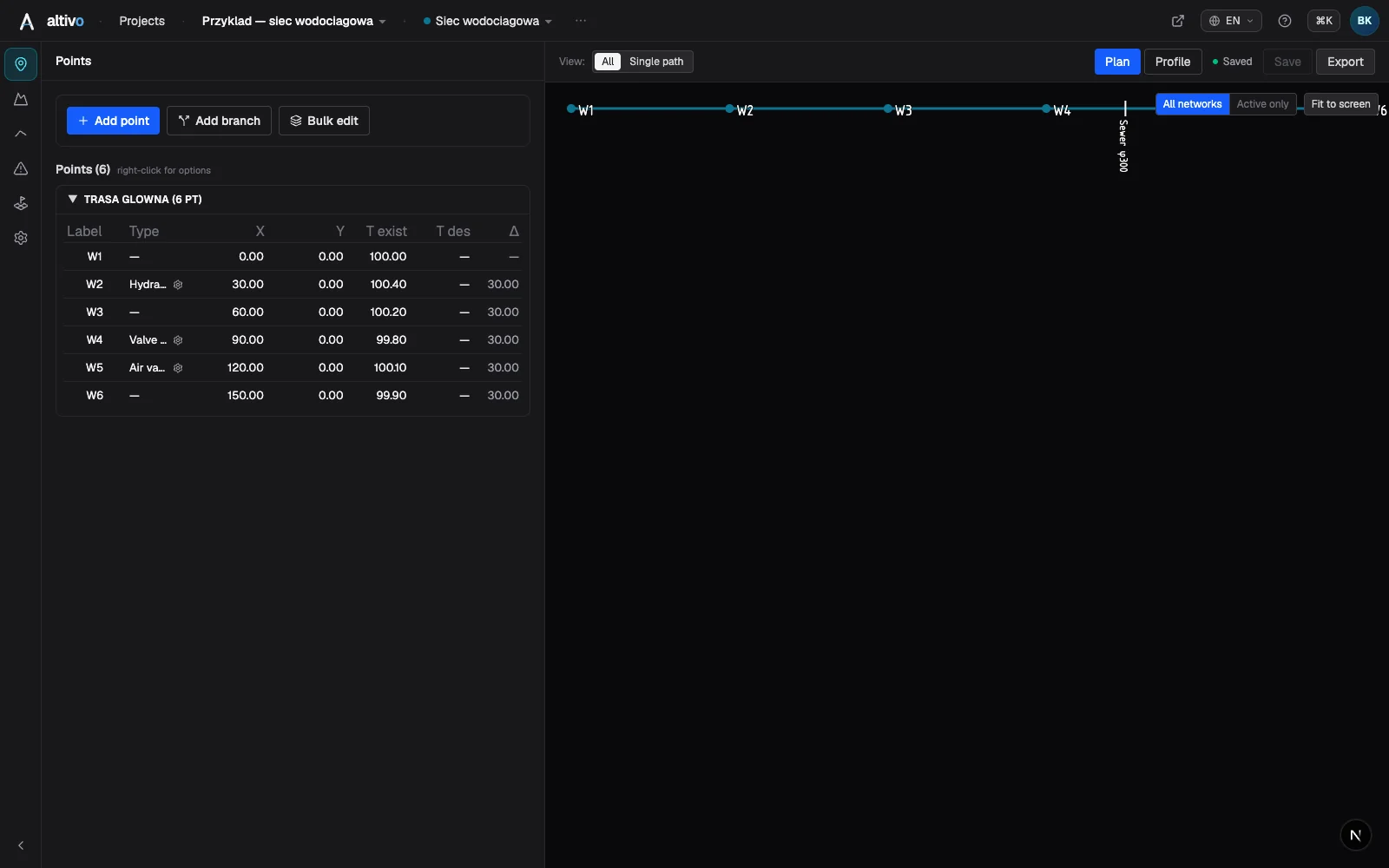
Coordinates of the characteristic points — manholes, bends, crossing locations — are enough. X, Y, Z gives you ground levels too; X, Y works when levels come from elsewhere. Any separator is auto-detected, so you can paste straight from Excel or a CAD coordinate table. Any metric grid works (UTM, OSGB36, State Plane, national grids); large coordinate values are shifted toward zero automatically so the drawing stays stable in CAD.
Step 2 — Levels and gradients
This is the part that is genuinely design, and the only part worth your attention. Enter invert elevations or let them follow a gradient; type a gradient in ‰, % or 1:DN and the levels recompute, or vice versa. Ground and invert elevations drive the cover depth, which is tracked along the whole route, and a drop connection appears in a manhole when the inlet/outlet invert difference calls for one.
If you only need the arithmetic for one reach rather than a whole drawing, the free pipe slope and invert level calculator does that in the browser with a live mini long section — no account needed.
Step 3 — Objects and crossings
Manholes, chambers, road crossings, casing pipes and conflicts with other utilities go on both the plan view and the profile. Crossings with foreign services are marked at the right chainage (stationing) with their clearance — see adding crossings and objects.
Step 4 — Profile table
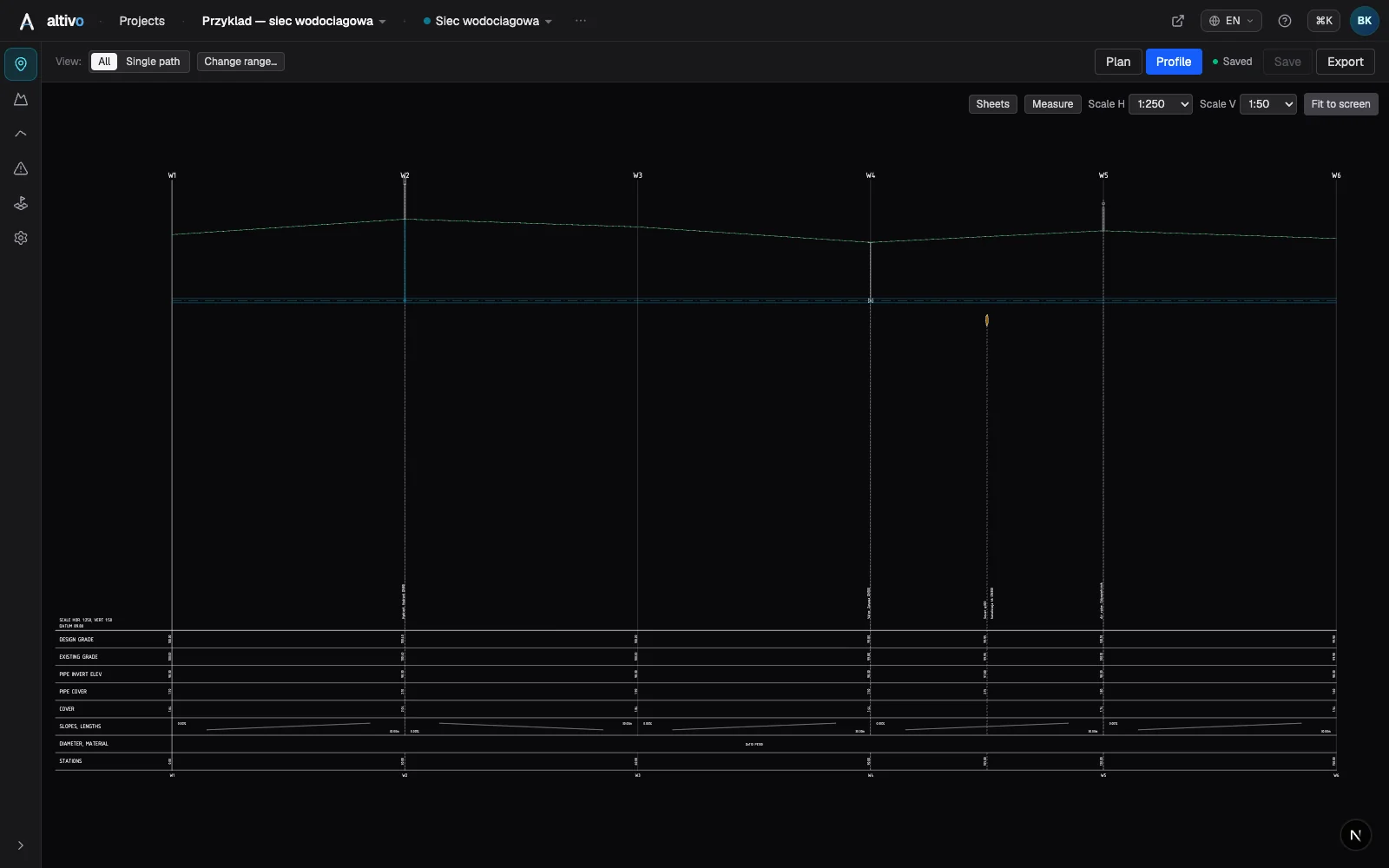
Switch on exactly the rows your practice and reviewer require: existing and design ground level, invert, cover, gradients and lengths, diameter and material, stationing, angles, drop. Because every value derives from one data set, the profile data band never drifts out of step with the geometry when you revise.
Step 5 — Export the DXF
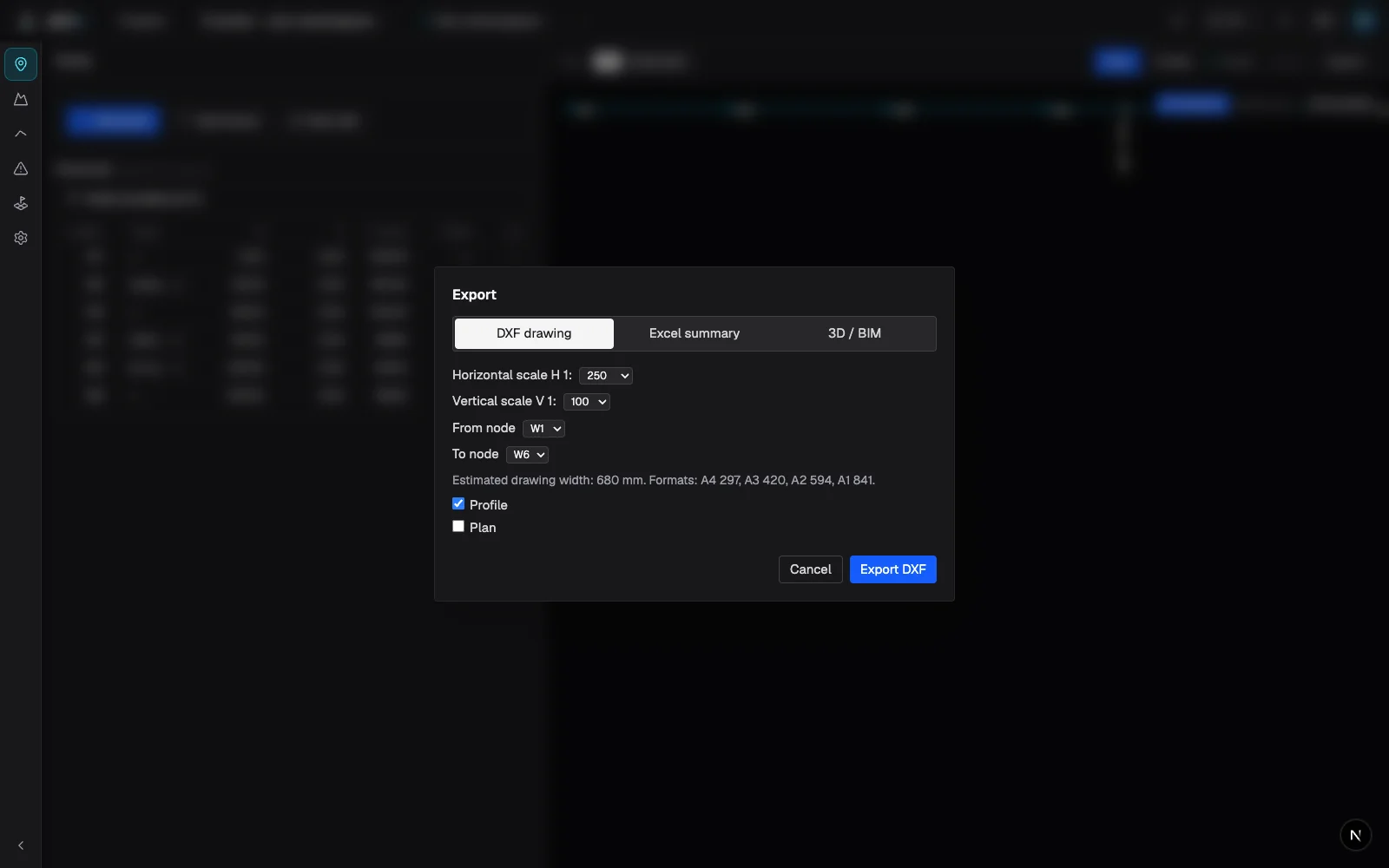
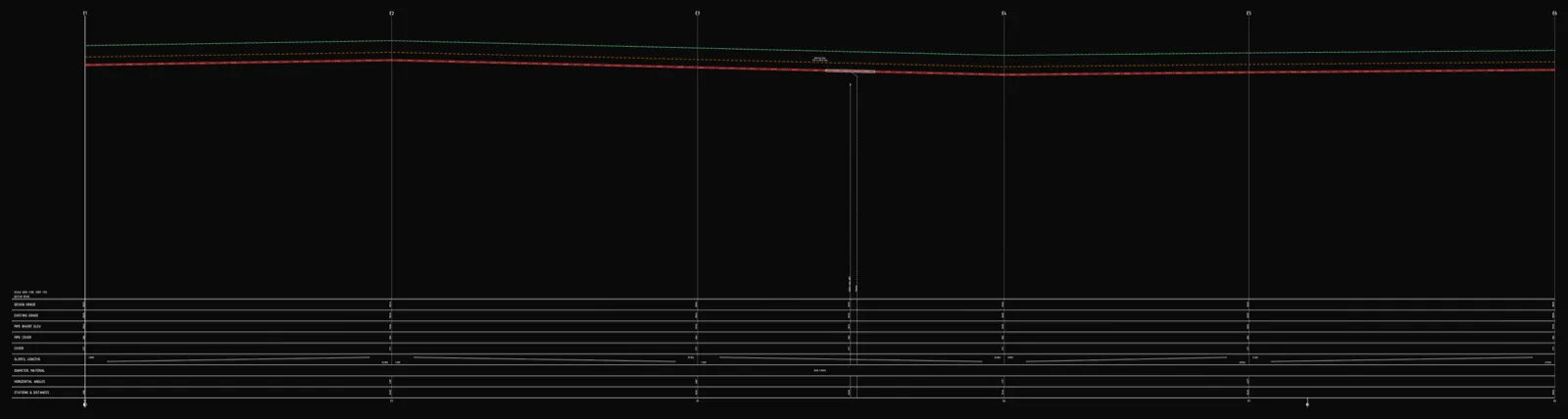
Dual scale — separate horizontal and vertical, the vertical exaggeration that makes level differences readable (e.g. 1:500 horizontal / 1:100 vertical) — clean named layers, editable MText rather than exploded geometry, and a correct offset so the file opens where it should. The profile and the plan view export into a single DXF (the plan view is an optional toggle), so you get the full plan-and-profile deliverable in one file. The DXF is AutoCAD 2004 format (AC1018) and newer, and opens in AutoCAD, BricsCAD, ZWCAD or GstarCAD. For the full walkthrough, see sewer long section to DXF, step by step.
This also matters for the large number of firms on AutoCAD LT, which cannot create pipe networks or profile views. The long section is generated separately and lands on an LT (or plain AutoCAD) seat as a standard DXF, without a Civil 3D licence.
What you still do in CAD — on purpose
The generated DXF is not the finished deliverable. It is a clean, correctly-scaled profile dropped into your environment so you can do the work that belongs in CAD:
- Title block and drawing frame — your office template, sheet number, scale bar, north point, revision cloud.
- Project-specific annotations — notes, references to details, callouts to other sheets.
- Revisions — a reviewer's comment, a level change from the client, a re-routed crossing.
- Assembling the sheet — combining the profile with the plan, schedules and other drawings into the issued set.
Because each part of the drawing lands on its own named layer — ground line, pipe axis, profile table, annotations, drawing frame, objects and crossings — and text stays editable MText, none of this means fighting imported geometry.
A practical note on revisions: if a level or the route changes substantially, it is faster to adjust the data and re-export than to rebuild the geometry by hand. Small, sheet-level edits stay in CAD; structural changes go back to the data. Keeping that line clear is what makes the round-trip pay off.
When to stay with Civil 3D
Stay with Civil 3D — or with whichever full civil package you already run — when:
- the pipe network must stay tied to a surface model that other people are still changing;
- the project includes corridor, grading or earthworks design in the same model;
- you need model-based quantity take-off or clash detection across a large network;
- one model has to drive many sheets and stay consistent as the design moves;
- your client's deliverable specification names a native DWG/Civil 3D model, not a drawing.
A focused profile tool wins for the opposite case: short to medium utility runs, service connections, and any job where the deliverable is the drawing. Many offices end up running both — the model for the big scheme, the generator for the fifteen small ones that would otherwise eat a week.
A note on cost: prices for both Civil 3D and every specialist package change by region and term, so this article quotes none. Check Autodesk's own Civil 3D purchase page for current terms (we could not retrieve it programmatically on 19 September 2026, so we deliberately quote no figure). Altivo's own plans are shown on the Altivo site, after a 14-day trial that needs no card.
A note on terminology
| Term | Where it is used | Notes |
|---|---|---|
| Long section / longitudinal section | UK, Ireland, Australia, NZ | The default phrasing in British practice and BS EN standards |
| Plan and profile | North America | Usually the paired plan view + profile on one sheet |
| Profile view | AutoCAD Civil 3D (any region) | The software object, not a regional term |
| Chainage vs stationing | UK/AU vs US/CA | The same distance along the route |
| Invert level vs invert elevation | UK/AU vs US/CA | The inside bottom of the pipe |
They describe the same thing. Altivo produces all of it — the plan view and the profile, exported together as a CAD-ready DXF. For a broader survey of the tools in this space, see online long-section software; for the design rules behind the levels, see gravity sewer gradients and how to read a long section.
Frequently asked questions
Is there a real alternative to Civil 3D for drawing pipe long sections? For the drawing itself, yes. If your job is to turn surveyed points and design levels into a compliant long section and a CAD-ready DXF, a focused profile tool does that without a surface, an alignment or a pipe parts list. It is not an alternative to Civil 3D as a whole: surface modelling, corridor design, grading and a live network model stay in Civil 3D.
What can Civil 3D do that a profile generator cannot? Surface and terrain modelling from survey data, corridor and road design, grading, a pipe network tied to that surface model, hydraulic analysis through connected Autodesk tools, quantity take-off from the model, and a single model that drives many sheets at once. If your deliverable is a live model rather than a drawing, none of that is replaceable.
Can I make a plan and profile without Civil 3D? Yes. You can generate the long section without building a surface, alignment and pipe network. Paste route coordinates, set levels and gradients, add objects and crossings, then export a dual-scale DXF that opens directly in AutoCAD, BricsCAD, ZWCAD, GstarCAD or AutoCAD LT. You still finish the sheet, title block, revisions and annotations in the CAD you already own.
Can AutoCAD LT open a Civil 3D pipe profile? AutoCAD LT cannot create pipe networks or profile views. But because the long section is generated separately and exported as a standard DXF, an LT or plain AutoCAD seat can open and finish it without a Civil 3D licence.
Is a long section the same as plan and profile or profile view? They describe the same deliverable. UK, Irish and Australian engineers call it a long section or longitudinal section. North American utility sets call it plan and profile. Profile view is the AutoCAD Civil 3D software object. All three show the ground line, pipe invert, gradients, depths, stationing and the profile table.
Summary
"Civil 3D alternative" is the wrong frame for most of the people searching it. Civil 3D is not too expensive or too complicated — it is built to produce a model, and you needed a drawing. Generating the long section from your data and reserving CAD for the title block, revisions and sheet assembly is a faster split of the same work. Where a model is genuinely the deliverable, Civil 3D stays exactly where it is.
Try Altivo free — 14 days, no card required. Paste your route, design the profile, export a DXF, and finish the sheet in the CAD you already use.
Related articles
Import Coordinates from Excel into AutoCAD: CSV, Point IDs and Elevations
Get a survey point list from Excel into CAD without losing point IDs, decimals or elevations: prepare the CSV, map easting, northing and Z, and compare plain AutoCAD with Civil 3D point file formats (PNEZD vs PENZD) — with a sample file.
Underground cable long section — power and telecom cable routes
How to draw the longitudinal profile of a buried power or telecom cable route: minimum burial depth by voltage class, crossings, protective ducting, warning tape and a DXF export — in the browser, no CAD.
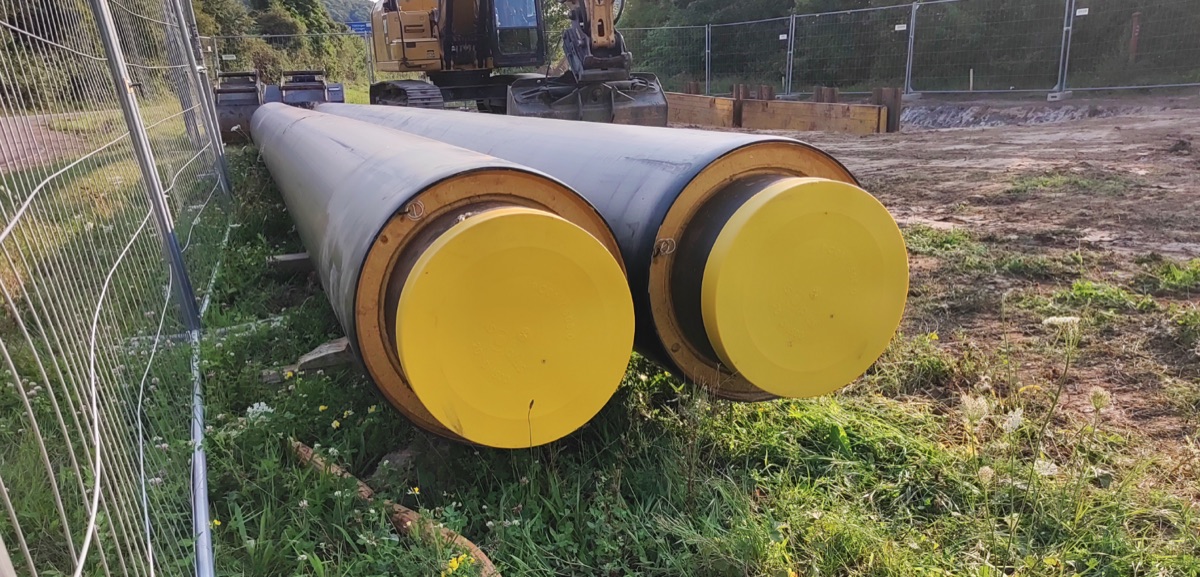
District heating long section — preinsulated pipe in profile
How to draw the longitudinal profile of a district heating network with preinsulated bonded pipe: two diameters (carrier and casing), cover to the casing crown, leak detection, crossings, the profile table and a DXF and IFC export — in the browser, no CAD.
Water main long section to DXF — step by step
How to draw a water main longitudinal profile: minimum cover vs frost depth, pipe centreline levels, valves and hydrants, crossings, the profile table and a clean dual-scale DXF export — in the browser, no CAD.
Ready to design without the pain?
Altivo is the fastest way to produce a clean DXF. Try it today.
Start the 14-day trial